Installation
Installation
System Requirements
GS RichCopy 360 requires admin privileges when installing and using GS RichCopy 360. It also requires the following:
| REQUIREMENT | SPECIFICATION |
|---|---|
| Operating system | 32-bit or 64-bit of any of the following: Windows Server 2025 Windows Server 2022 Windows Server 2019 Windows Server 2016 Windows Server 2012R2 Windows Server 2012 Windows Server 2008 R2 Windows Server 2008 Windows Server 2003 Windows 11 Windows 10 Windows 8.1 Windows 8 Windows 7 Windows XP Windows Vista |
| Processor | Pentium III (PIII) equivalent or higher |
| RAM | 2GB |
| Storage | 40MB Note: It is recommended to have more than 40MB disk space to meet logging requirements in case logs are stored on the same drive partition. |
| Software | Microsoft .NET Framework 4.5 Note: Installing GS RichCopy 360 will not proceed if this framework is not installed. |
| Installer | GS RichCopy 360 Setup.exe |
| License | Once installed, GS RichCopy 360 will run in trial mode, copying a maximum of 5 files from every folder. When the trial period expires, it will ask for a valid serial key that you need to enter to automatically switch to a full version. Uninstalling or reinstalling are unnecessary. For more information, refer to Registering GS RichCopy 360. For licensing details, refer to Licensing. |
Installing GS RichCopy 360
Before installing GS RichCopy 360, log on to the server or workstation as a user with full admin privileges. To install GS RichCopy 360, follow these steps:
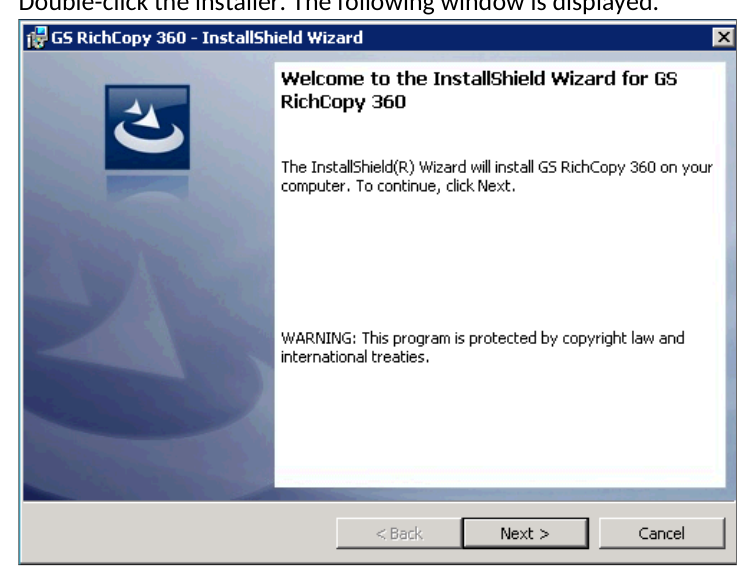
- Double-click the installer. The following window is displayed.
- Select Next. The License Agreement screen is displayed.
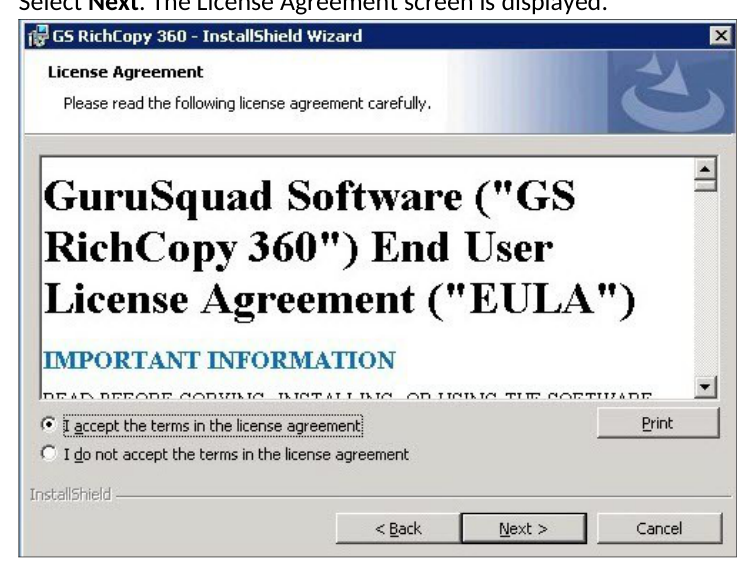
- Select I accept the terms in the license agreement, and then select Next.
The Destination Folder screen is displayed.
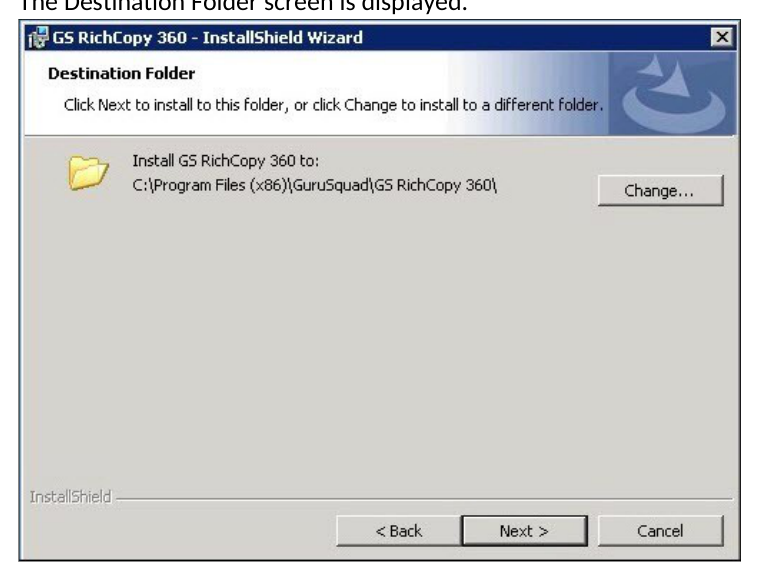
- Select Change if you want to install GS RichCopy 360 in a different folder, or Next to continue without changing the destination folder. The Ready to Install the Program screen is displayed.
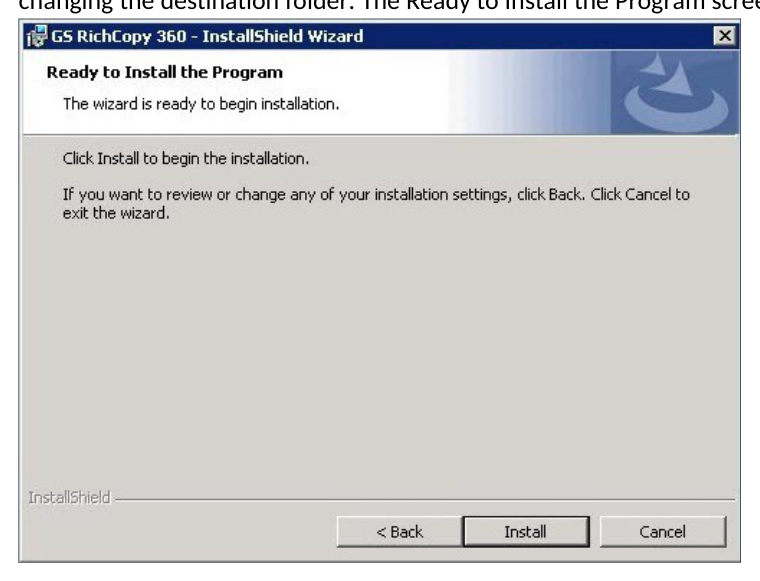
- Select Install to proceed with the installation.
When the installation is complete, the following screen is displayed.
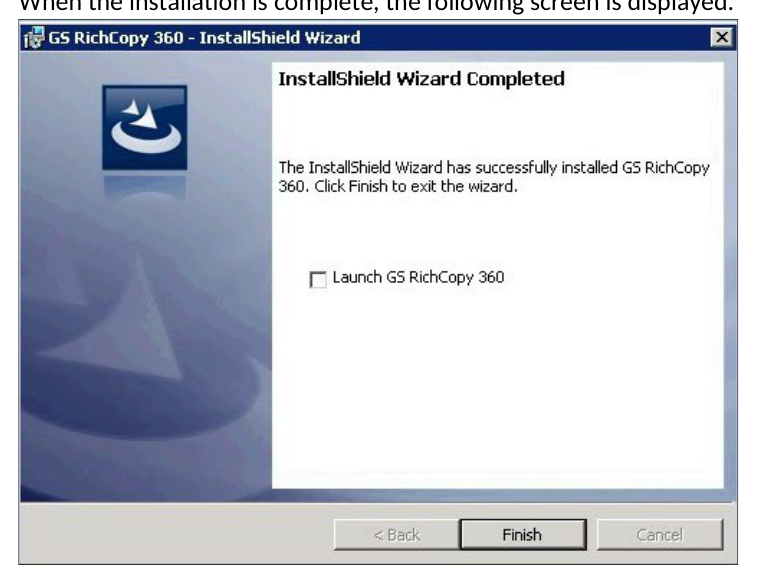
- Select Finish to close the window.
Registering GS RichCopy 360
To register a newly installed GS RichCopy 360, you need the following:
-
Product serial key
-
Email address
The email address is used for further correspondence and support, and to check for license authenticity.
Note: The serial key will work only for the version issued (i.e. Standard or Enterprise).
To register GS RichCopy 360, follow these steps:
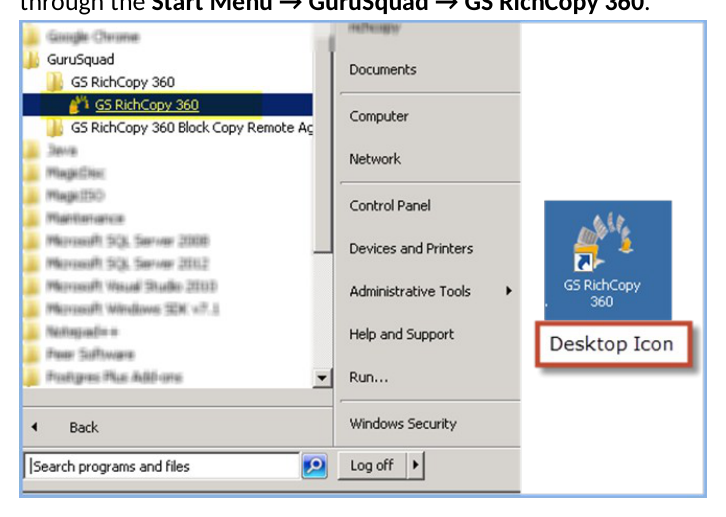
- Open GS RichCopy 360 by double-clicking the GS RichCopy 360 icon either from the desktop or through the Start Menu → GuruSquad → GS RichCopy 360.
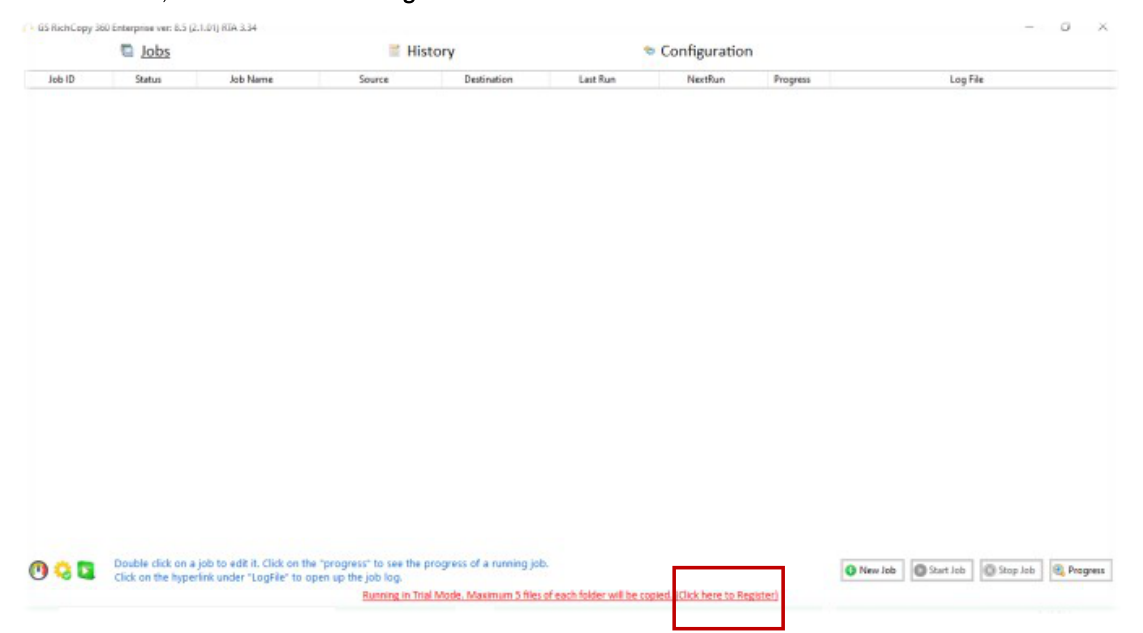
- The main GS RichCopy 360 window is displayed. The default screen is the Jobs section. At the bottom of the window, select Click here to register.
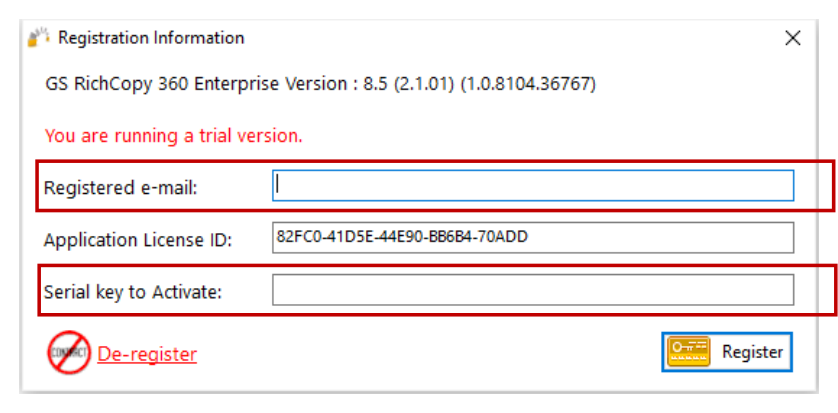
- Enter your registered email, the provided serial key, and select the Register button.
Once the Registration process has been started, GS RichCopy 360 will initiate a connection to the GuruSquad activation servers and activate your copy.
Note: If your machine does not have internet connectivity, open a support ticket by phone or by email. For contact details, refer to Frequently Asked Questions (FAQs)offline activation code can be generated based on the Application License ID.
Upgrading GS RichCopy 360
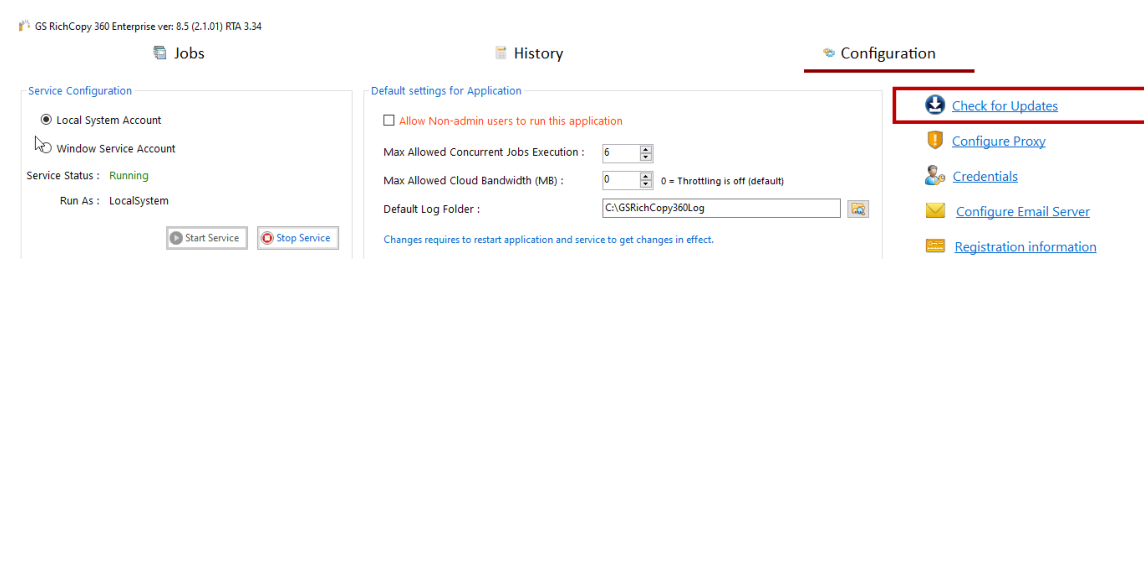 To upgrade to the latest build of the current version, click Check for Updates in the Configuration section or download the latest package from GuruSquad.com. The upgrade will automatically update the software and the database to the new version.