Command-line (CLI) reference
Command Line (CLI) Support
Both GS RichCopy 360 Standard and Enterprise offer command line (CLI) support. This is very useful for administrators who are looking to automate job management and creation from the command line.
The command line offers the ability to manage GS RichCopy 360 clients installed locally and ones that are installed on remote machines. This provides administrators the option to mass-configure or manage clients from one central computer.
The next sections cover the different command line options and where they are used along with easy-to-follow examples. A section will discuss the Generate Command Line Script, which provides a full syntax from a pre-defined job so that administrators can save time and effort in terms of figuring out the right syntax to use.
Note: The CLI fully supports environment variables. For more information, refer to Example Section K: Environment Variables.
Refer to the following sections for more information:
-
GS RichCopy 360 Client—covers how to manage clients using CLI. There are two CLI commands that can be used:
-
GSRicCopy360.exe—used to set actions such as creating, deleting, enabling, and disabling jobs. It is also utilized for specifying cloud source and destination parameters.
-
GSAPI.exe—used to retrieve information about jobs defined in GS RichCopy 360 Client. It can report on the job running status, job history, and list of jobs defined.
Note: GSAPI is available only in GS RichCopy 360 Enterprise.
- GS RichCopy 360 RTA (Enterprise)—covers how to manage RTA servers using CLI.
GS RichCopy 360 Client
The GS RichCopy 360 client CLI is used to manage installed clients locally and on remote machines.
GSRichCopy360.exe
GSRichCopy360.exe is used to set actions such as creating, deleting, enabling, and disabling jobs.
Access
To access the CLI version of GS RichCopy 360, follow these steps:
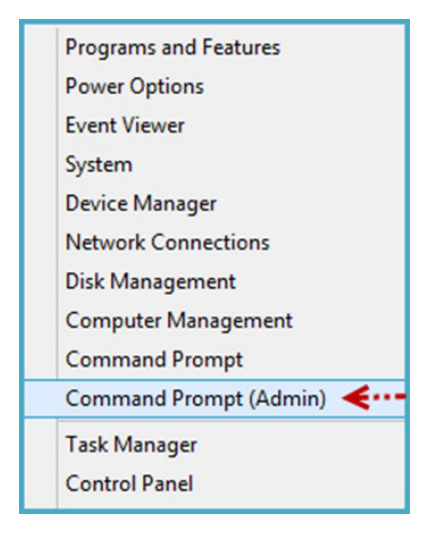
- Run the command prompt as an administrator by right clicking the Start menu and then selecting Command Prompt (Admin), as shown in the following image.
Note: If there is a requirement where users without administrative privileges need the ability to run GS RichCopy 360 CLI, refer to Enable Remote Management and Remove Admin Privilege Restriction for more information.
- When the Command Prompt window opens, navigate to the GS RichCopy 360 folder. By default, it is installed in one of the following:
-
Enterprise version—C:\Program Files\GuruSquad\GS RichCopy 360 Enterprise
-
Standard version—C:\Program Files\GuruSquad\GS RichCopy 360
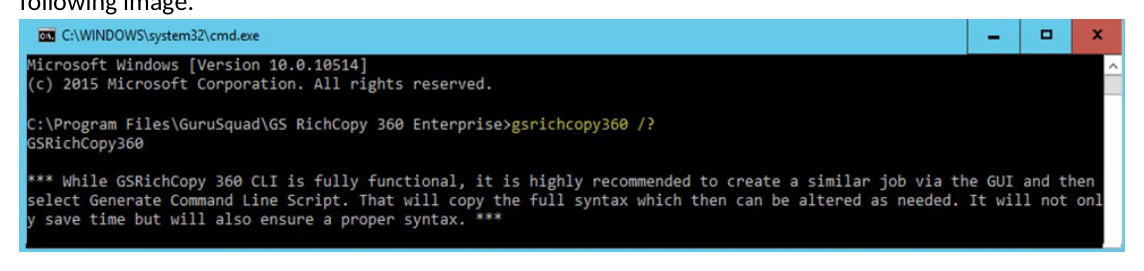
- To list all the available parameters in the command line, type the following line:
gsrichcopy360 /?
All the available commands and optional parameters are displayed on screen as shown in the following image.
An administrator can create a template job in the GS RichCopy 360 GUI and generate a command line script for that job. This would simplify the need of having to find out the right syntax and save on time spent to script the job through the CLI.
This is most useful when the intent is to write a script for job creation. It is extremely easy to generate a command line script from the GUI. All that is required after the “dummy job” is created with all of its options (copy options, scheduling, include/exclude filters, and so forth) is to right-click the job and select Generate Command Line Script. This copies the full syntax to the clipboard, which can later be pasted to Notepad, allowing the CLI to be changed or executed.
Syntax
GSRichCopy360.exe [Action Command] [Required Parameters] [Options]
Action Commands
There are several action commands that can be issued through the CLI.
| COMMAND | DESCRIPTION |
|---|---|
| enablejob | Enables an existing job. |
| disablejob | Disables an existing job. |
| runexistingjob | Runs an existing job that has already been created. |
| deleteexistingjob | Deletes an existing job. |
| stopexistingjob | Stops an existing job that is currently running. |
| createjob | Creates a new job. |
| createandrunjob | Creates a new job and runs it. |
Note: Different commands will have parameters that are required or are optional. Review the examples provided in this manual to learn when and how to use each command and parameter. Also, jobs must be configured to run as a service in order to be set to run from the CLI.
The commands EnableJob, DisableJob, RunExistingJob, DeleteExsitingJob, and StopExistingJob all require information about the job. Jobs can be referenced by its Job ID (JobID) or Job Name (JobName). The syntax would look something similar to these examples:
-
Enablejob jobname:”Account Job”
-
DeleteExistingJob jobid:115
The commands CreateJob and CreateAndRunJob require several optional and required parameters. Refer to the next section for information on the available parameters.
Note: Using the Generate Command Line Script feature from the GUI would save administrators from having to assemble a job creation command. However, it is strongly advised to get familiar with the different options so that once a job is generated from the GUI, it can be modified as required.
Administrators can set the Job Serial number through the command line. All manually set Job Serial numbers must be prefixed by 99999 and should be 13 numbers long. This can be useful in scenarios where the administrator wants to automate job creation on the client and the RTA server. For more information, type gsrichcopy360 /? at the command prompt from the GS RichCopy 360 Enterprise folder or review Example 7 in the Examples section.
Parameters
| PARAMETER | INFORMATION |
|---|---|
| <deletejobwhencomplete> | Default is false. This is used only with createjob and createandrunjob action commands. |
| <"jobdescription:<jobdescription>"> | |
| "source:<source folder path>" | |
| "destination:<destination folder path>" | For cloud destination and source parameters see the CLI help system by running gsrichcopy360.exe /help or gsrichcopy360.exe /? From the gs richcopy 360 Enterprise folder. |
| <"sourceusername:username<sourcepassword:password>> │ <sourcerunasuser:<account name connect as configured in app>"> | If sourcepassword is not passed with sourceusername, it will be prompted and will not be stored in the database for future use. Note: This option cannot be associated with recurring jobs. |
| SourceUserName:domain\username or [email protected] | For cloud destinationusername and sourceusername parameters see the CLI help system by running gsrichcopy360.exe /help or gsrichcopy360.exe /? From the gs richcopy 360 Enterprise folder. |
| <"destinationusername:username<destinationpassword:password>> │ <destinationrunasuser:<account name connect as configured in app>"> | If destinationpassword is not passed with destinationusername, it will prompted and will not be stored in the database for future use. Note: This option cannot be associated with recurring jobs. |
| DestinationUserName:domain\username or [email protected] | |
| <preservecredentials> | Default is Off. It will be used with sourceusername, destinationusername, and if user has not selected to prompt for password. |
| <fileexc:<Comma separated values>> | |
| <fileinc:<Comma separated values>> | |
| <folderexc:<Comma separated values>> | |
| <filderinc:<Comma separated values>> | |
| <jobinactive> | Default is Active/Enabled. |
| <runonservice> | Default is Off. Note: This parameter must be used with createandrunjob, and jobs that are scheduled. |
| <copyasroot> | Default is Off. |
| <instantcopy> | Default is Off. |
| <copylockedfile> | Default is Off. |
| <copyattributes> | Default is Off. |
| <preservedatetimestamp> | Default is Off. |
| <stopifmachineunreachable> | Default is Off. |
| <copyacl:FileFolder│File"> | Default is Off. |
| <copyaclforskippedfiles> | This may be used only if CopyAcl is FileFolder. |
| <COPYALL│MIRROR│MOVE│DIR│COPYCHANGES> | |
| <"filecompareoption:COPY ONLY NEWLY CREATED FILES│SKIP IF DESTINATION IS NEWER│TIMESTAMP + SIZE│FILE SIZE│MODIFIED TIMESTAMP"> | Default is TIMESTAMP + SIZE. |
| <"taskconcurrency:<1-256>"> | Task Concurrency must be in the range of 1-256. Default value is 4. |
| <"folderdepth:<folder depth to scan>"> | Default is 0. Folder depth must be in the range of 1-99. |
| <userealtime <realtimeonacl> <realtimeonattribute> "realtimeincext│realtimeexcext:<comma separated extension>"> | Note: userealtime is only available in GS RichCopy 360 Enterprise. |
| <"datefilterfromdate:<dd-MMM-yyyy HH:mm>" "datefiltertodate:<dd-MMM-yyyy HH:mm>" │ "datefilterlastdays│datefilterpriordays│datefilterlastmins:value must be 1-10000"> | Default Log is Off. |
| <logenabled "loglevel:All│Error(Default)│Diagnostic" "logpath:<log file path>" logappend(Default is off) logsize:<logsize> | Log File Size must be in the range of 1-50000 MB. Default value is 5000 MB. |
| <mailactive mailto:<mail address> mailcc:<mail address> mailbcc:<mail address> | Default is Off. |
| "recurrencescheduled:RunOnSchedule│RunOnce" | |
| "startdatetime:<dd-MMM-yyyy HH:mm>" | |
| "recurstartdate:<dd-MMM-yyyy>" "recurstarttime:<HH:mm:ss>" "recurendtime:<HH:mm:ss>" | These recurrence settings are applicable only if recurrencescheduled is set to RunOnSchedule. |
| <TerminateCondition:<ENDAFTEROCCURENCE│ENDBYDATE> <terminateconditionvalue:<numeric with ENDAFTEROCCURENCE│date with ENDBYDATE>> | |
| "recurinterval:<it should be in Once, 2 minutes, 5 minutes, 10 minutes, 15 minutes, 30 minutes, 60 minutes, 4 hours, 8 hours, 12 hours, 16 hours, 23 hours. Default is 2 minutes.>" | |
| "recurpattern:DAILY│WEEKLY│MONYHLY│YEARLY" | |
| "recurevery:1" | |
| "monthno:MonthNo must be in range 0-11." "monthdayno:MonthDayNo must be in range 0-30." "weekno:WeekNo must be in range 0-4." "weekdayno:<WeekDayNo must be in range 0-6.>" | |
| <usebytereplicator extensiontoexclude:<comma separated extensions> excludefilesizeinkb:<ExcludeFileSizeinKB must be in range of 0-1000000 KB. Default is 15000 KB. It must be greater than MinBlockSizeKB.>> | User can pass multiple comma-separated entries. |
| Usetcpcopy | RTA Configuration if TCP Copy or Block Copy is selected. Note: TCP and Block copy are available only in GS RichCopy 360 Enterprise. |
| <"jobserial:<jobserial prefixed with 99999 and should be 13 character long numeric value.>"> | If value is not passed for jobserial and TCP Copy is selected, jobserial will be calculated internally. |
| "ipaddress:<RTA IpAddress>" | |
| "port:<RTA Port must be in range of 1-65535. Default is 8008.>" | |
| "minblocksizekb:<MinBlockSizeKB must be in range of 50-25000 KB. Default is 10000 KB.>" | |
| <usecompression> | Default is Off |
| "<useencryption username:<minimum 8 character length> passphrase:<minimum 8 character length> encryptionkeytype:<AES-128│AES-256(Default)>>" | Encryption may be used with only usetcpcopy parameter. Default encryption is Off. |
Examples
Example 1: This command will copy changes only from “c:\source” to “\server\share” with several copy flags:
GSRichCopy360.exe createjob "jobname:Test Job" "source:c:\source" "destination:\server\share" "taskconcurrency:4" runonservice DIR "copyacl:Folder" "filecompareoption:File Size" "recurrencescheduled:RunOnce" "startdatetime:13-Feb-2016 19:30"
Example 2: This command will mirror “c:\source” to “\server\share” and send an email to multiple recipients. The job is scheduled to run once at 19:30 of that day (7:30PM in military time):
GSRichCopy360.exe createjob "jobname:Test Job" "jobdescription:Mirror Job" "source:c:\source" "destination:\server\share" copyasroot "taskconcurrency:4" runonservice MIRROR "copyacl:Folder" "filecompareoption:File Size" logenabled "loglevel:Error" "logpath:c:\logs\testjob.log" mailactive "mailto:[email protected],[email protected]" "mailcc:[email protected]" "mailbcc:[email protected]" "recurrencescheduled:RunOnce" "startdatetime:19:30"
Example 3: This command will move data from “c:\source” to “\server\share” and will run every day and repeat every 5 minutes:
GSRichCopy360.exe createjob "jobname:Test Job" "jobdescription:Mirror Job" "source:c:\source" "destination:\server\share" copyasroot "taskconcurrency:4" runonservice MOVE "copyacl:Folder" "filecompareoption:File Size" "recurrencescheduled:RunOnSchedule" "startdatetime:12-Feb-2016 19:30" "recurstartdate:12-Feb-2016" "recurstarttime:00:00:00" "recurendtime:23:59:59" "recurinterval:5 minutes" "recurpattern:DAILY" "recurevery:1"
Example 4: This command will create and run DIR command from “c:\source” to “\server\share” using a specified username and will prompt for password then will delete the job once it is completed:
GSRichCopy360.exe createandrunjob "jobname:Test Job" "jobdescription:Mirror Job" "source:c:\source" "destination:\server\share" destinationusername:corp\admin1 "taskconcurrency:4" runonservice DIR "copyacl:Folder" "filecompareoption:File Size" "recurrencescheduled:RunOnce" "startdatetime:13-Feb-2016 19:30" deletejobwhencomplete
Example 5: This command will enable a job on a remote machine:
GSRichCopy360.exe serviceip:192.168.0.10 enablejob jobid:115
Example 6: This command will create a TCP copy job using AES256 encryption and compression and will repeat every Monday:
GSRichCopy360.exe createjob "jobname:Test Job" "jobdescription:Mirror Job" "source:c:\source" "taskconcurrency:4" runonservice DIR "copyacl:Folder" "filecompareoption:File Size" "recurrencescheduled:RunOnSchedule" "startdatetime:13-Feb-2016 19:30" "recurstartdate:13-Feb-2016" "recurstarttime:00:00:00" "recurendtime:23:59:59" "recurinterval:Once" "recurpattern:WEEKLY" "recurevery:1" "WeekDayNo:1" usetcpcopy "ipaddress:192.168.0.200" "port:8008" "minblocksizekb:10000" usecompression useencryption "username:DC4ZE2QOQP" "passphrase:OLMECAE4P31P3MZZ1B1UQJXDF1EFYUNR" "encryptionkeytype:AES-256"
Example 7: This command will create a TCP copy job and set the Job Serial number to 9999912345678:
GSRichCopy360.exe createjob "jobname:Accounting Archive" "source:c:\source" copyasroot "taskconcurrency:4" runonservice COPYCHANGES copylockedfile copyattributes "filecompareoption:Timestamp + Size" logenabled "loglevel:Error" "logpath:c:\logs\accounting.log" mailactive "mailto:[email protected]" "recurrencescheduled:RunOnSchedule" "startdatetime:16-Feb-2016 21:49" "recurstartdate:15-Feb-2016" "recurstarttime:07:00:00" "recurendtime:10:59:59" "recurinterval:5 minutes" "recurpattern:DAILY" "recurevery:1" usetcpcopy "ipaddress:rtaserv01.acme.com" "port:8008" "minblocksizekb:10000" jobserial:9999912345678
GSAPI.exe
GSAPI is used to retrieve information about jobs defined in GS RichCopy 360 Clients. It can report on job running status, job history, and provide a list of defined jobs.
Access
To access GSAPI.exe, follow these steps:
- Run the command prompt as an administrator by right-clicking the Start menu and then selecting Command Prompt (Admin), as shown in the following image.
-
When the Command Prompt window opens, navigate to the GS RichCopy 360 Enterprise folder: C:\Program Files\GuruSquad\GS RichCopy 360 Enterprise
-
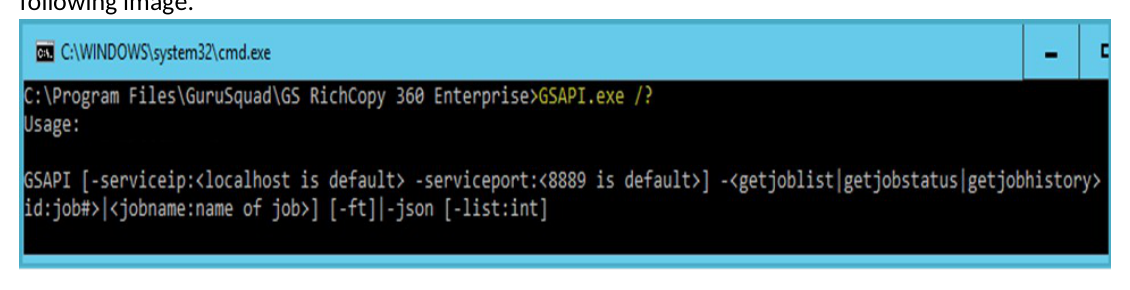
To list all the available parameters in the command line, type the following line:
GSAPI.exe /?
All the available commands and optional parameters are displayed on screen as shown in the following image.
Syntax
GSAPI.exe [Action Command] [Options]
Action Commands
There are several action commands that can be issued through the CLI.
| COMMAND | DESCRIPTION |
|---|---|
| Getjoblist | Provides a list of all existing jobs. |
| Getjobstatus | Provides status of an existing job (running, stopped, and so forth). |
| Getjobhistory | Provides details of the job’s history. |
Note: Different commands will have parameters that are required or are optional. Review the examples provided in this manual to learn when and how to use each command and parameter. Also, jobs must be configured to run as a service in order to be set to run from the CLI.
If GSAPI.exe is not used with any optional parameters, it will report on all jobs. However, it can also be narrowed down to a specific job using the parameters –JobName and –JobID at which point it would report information relating to the specified job.
Getjobhistory can make use of one more optional parameters, –list. Getjobhistory, by default, reports back the entire history when reporting on a specific job. Using –list, however, returns only the latest job history details for a specified job.
Results of GSAPI.exe will be displayed in a tabular format. The administrator may pass the parameter –json, which displays results in JSON format.
Examples
Example 1:
GSAPI.exe -getjobhistory -jobname:"Accounting Data Archive"
Example 2:
GSAPI.exe -getjobstatus -json -jobid:103
Example 3:
GSAPI.exe -getjoblist -json
Example 4:
GSAPI.exe -getjobstatus -ft -jobid:103
Example 5:
GSAPI.exe - getjobhistory -jobname:"Accounting Data Archive" -list:5
Example 6:
GSAPI.exe - getjobhistory -jobid:"105" -list:5
Example 7:
GSAPI.exe - getjobhistory -jobid:"105"
Enable Remote Management and Remove Admin Privilege Restriction
By default, the CLI commands (GSRichCopy360.exe and GSAPI.exe) will execute on the local machine they are run on. However, GS RichCopy 360 extends the option to issue commands to a remote machine. To do so, the command should include the argument: serviceip:<IP Address or hostname>. By default, it would use the port TCP 8889. If the default port is changed on the client, the argument serviceport:<portnumber> should be used.
Here is an example that would enable a job on a remote machine to further clarify:
GSRichCopy360.exe ServiceIP:192.168.0.10 enablejob jobid:115
GSAPI.exe -ServiceIP:192.168.0.10 -getjobhistory
By default, GS RichCopy 360 clients:
- Only allow the CLI from the local machine itself by default. If a client needs to be managed from another machine, a config file must be edited on the client that allows its management to specify the allowed IP addresses. Completing the following steps grants another machine remote CLI access:
-
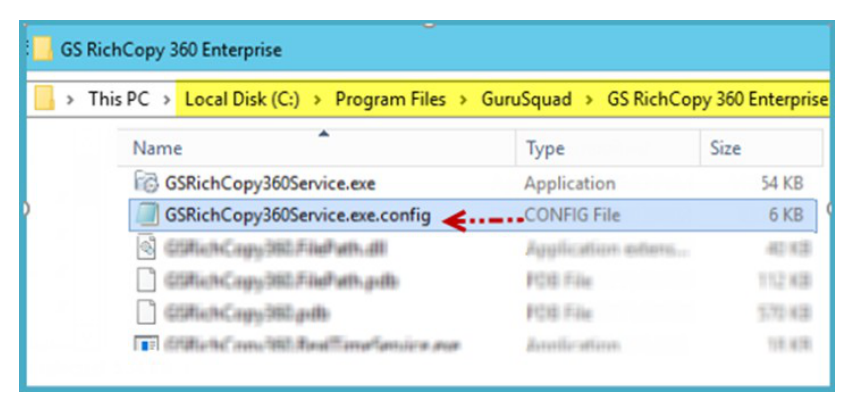
Go to C:\Program Files\GuruSquad\GS RichCopy 360 Enterprise.
-
Open the GSRichCopy360Service.exe.config file with Notepad.
 3. Add the IP addresses in the key named AllowedIpAddress as shown in the following image.
Note: IP addresses must be separated by commas. Do not leave this section blank as it would then be set up to accept commands from any IP address.
-
Save the GSRichCopy360Service.exe.config file.
-
Restart the GS RichCopy 360 Service.
- Only users with admin privileges can use the GS RichCopy 360 command line by default. If there are users that need to use the GS RichCopy 360 CLI without administrative privileges, the config file must be edited to remove the administrative privileges restriction.
-
Go to C:\Program Files\GuruSquad\GS RichCopy 360 Enterprise.
-
Open the GSRichCopy360Service.exe.config file with Notepad.
-
Set the value of the key IsOnlyAdminAllowedfromCLI to false as shown in the following image.

-
Save the GSRichCopy360Service.exe.config file.
-
Restart the GS RichCopy 360 Service.
GS RichCopy 360 RTA Enterprise
The RTA comes with its own command line (CLI) support that can be triggered directly from the RTA server or from a remote machine that has an installation of an RTA server. It uses the GSRichCopy360.TransferAgent.exe command.
GSRichCopy360.TransferAgent.exe
Access
To access the CLI version of RTA, follow these steps:
- Run the command prompt as an administrator by right-clicking the Start menu and then selecting Command Prompt (Admin), as shown in the following image.

Note: If there is a requirement where users without administrative privileges need the ability to run GS RichCopy 360 CLI, refer to Enable RTA Remote Management and Remove Admin Privileges Restriction for more information.
-
When the Command Prompt window opens, navigate to the GS RichCopy 360 RTA folder. By default, it is installed in C:\Program Files\GuruSquad\GS RichCopy 360 RTA.
-
To list all the available parameters in the command line, type the following line:
GSRichCopy360.TransferAgent.exe /?
All the available commands and optional parameters are displayed on screen as shown in the following image.
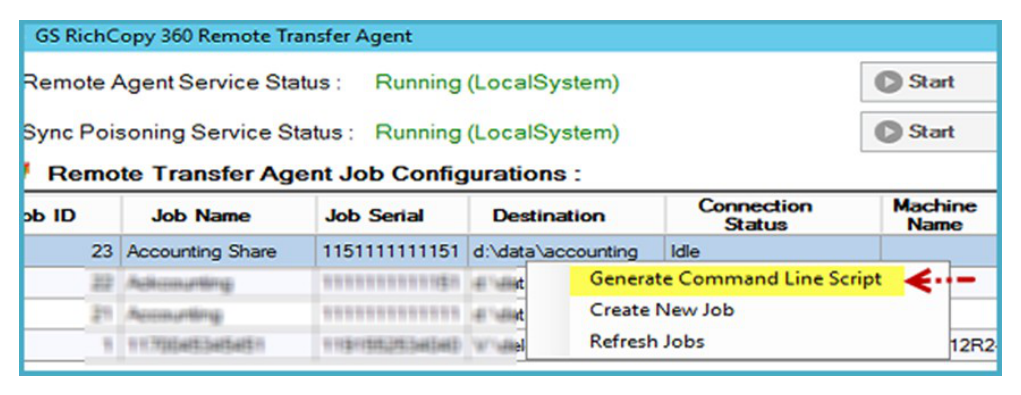
An administrator can create a template RTA job in the GS RichCopy 360 RTA GUI and generate a command line script for that job. This would simplify the need of having to find out the right syntax and save on time spent to script the job through the CLI.
This is most useful when the intent is to write a script for the RTA job creation process. It is extremely easy to generate a command line script from the GUI. All that is required after the “dummy RTA job” is created with all its options (Job Name, Description, Job Serial, and so forth) is to right-click the job and select Generate Command Line Script.
This copies the full syntax to the clipboard, which can later be pasted to Notepad, allowing the CLI to be changed or executed.
Syntax
GSRichCopy360.TransferAgent.exe [Action Command] [Required Parameters] [Options]
Action Commands
There are several action commands that can be issued through the CLI.
| Command | Description |
|---|---|
| enablejob | Enables an existing RTA job. |
| disablejob | Disables an existing RTA job. |
| deleteexistingjob | Deletes existing RTA job. |
| resetjobserial | Replaces jobserial with another one. |
| resetclient | Allows a different client to use this job. |
| createjob | Creates a new RTA job. |
Note: Different commands will have parameters that are required or are optional. Review the examples provided in this manual to learn when and how to use each command and parameter. Also, jobs must be configured to run as a service in order to be set to run from the CLI.
The commands EnableJob, DisableJob, DeleteExistingJob, and ResetClient share the same mandatory parameters that are associated with the specific job. Jobs can be referenced by Job ID (JobID) or Job Name (JobName). The syntax would look something similar to this:
-
GSRichCopy360.TransferAgent.exe Enablejob jobname:”Account Job”
-
GSRichCopy360.TransferAgent.exe DeleteExistingJob jobid:115
The optional parameters that can be used are Jobname, JobSerial, and JobId.
Note: Only one parameter can be used.
The ResetJobSerial command requires one more additional parameter, which is NewJobSerial. Refer to the following example for the proper syntax:
GSRichCopy360.TransferAgent.exe jobserial:1234567890123 newjobserial:1122334455667
In the example, the old jobserial “1234567890123” is replaced with a new jobserial of “1122334455667”.
The CreateJob command has several mandatory and optional parameters. Refer to the next section to learn more about the available parameters.
Note: Using the Generate Command Line Script feature from the GUI would save administrators from having to assemble a job creation command. However, it is strongly advised to get familiar with the different options so that once a job is generated from the GUI, it can be modified as required.
Parameters
| PARAMETER | INFORMATION |
|---|---|
| "jobname:<jobname>" | Required |
| "jobdescription:<jobdescription>" | Required |
| "destination:<destination folder path>" | Required |
| "jobserial:<jobserial>" | Required |
| <jobdisabled> | Optional Default is Active/Enabled. |
| "<useencryption username:<minimum 8 character length> passphrase:<minimum 8 character length> (Optional) | Optional |
| encryptionkeytype:<AES-128│AES-256(Default)>>" | Optional |
| "<usesyncpoison backuppath:<backuppath> backupsize:<1-99999 GB>>" | Optional |
Examples
Example 1: This command creates an RTA job.
GSRichCopy360.TransferAgent.exe createjob "jobname:test" "jobdescription:test" "destination:c:\destination" "jobserial:2034241500223" useencryption "username:dsfdsfsdfsd" "passphrase:dfsfdsfdsfsdf" "encryptionkeytype:AES-256" usesyncpoison "backuppath:c:\destination11" "backupsize:111"
Example 2: This command will create an RTA job with the name Accounting, the following as destination “d:\data\accounting”, a JobSerial value of “1234567890123”, and Sync Poisoning value of 5GB:
GSRichCopy360.TransferAgent.exe createjob "jobname:Accounting" "jobdescription:Accounting Server" "destination:d:\data\accounting" "jobserial:1234567890123" useencryption "username:ABCDEFGHI" "passphrase:12345678" "encryptionkeytype:AES-256" usesyncpoison "backuppath:e:\sync\accounting" "backupsize:5"
Example 3: This command will enable an existing RTA job with the name Accounting:
GSRichCopy360.TransferAgent.exe enablejob jobname:"accounting"
Another example using the JobSerial parameter:
GSRichCopy360.TransferAgent.exe enablejob jobserial:1234567890123
Example 4: This command will change JobSerial value from 1234567890123 to 1111111111111 for an existing RTA job:
GSRichCopy360.TransferAgent.exe resetjobserial jobserial:1234567890123 newjobserial:1111111111111
Another example using the JobName parameter:
GSRichCopy360.TransferAgent.exe resetjobserial jobname:"accounting" newjobserial:1111111111111
Example 5: This command will reset an existing RTA job so that it can be used by another GS RichCopy 360 client:
GSRichCopy360.TransferAgent.exe resetclient jobserial:1234567890123
Another example using the JobName parameter:
GSRichCopy360.TransferAgent.exe resetclient jobname:"accounting"
Example 6: This command will delete an existing RTA job:
GSRichCopy360.TransferAgent.exe deleteexistingjob jobserial:1234567890123
Example 7: This command will create an RTA job from a remote machine:
GSRichCopy360.TransferAgent.exe serviceip:192.168.0.5 createjob "jobname:Accounting" "jobdescription:Accounting Server" "destination:d:\data\accounting" "jobserial:1111111111111" useencryption "username:ABCDEFGHI" "passphrase:12345678" "encryptionkeytype:AES-256" usesyncpoison "backuppath:e:\sync\accounting" "backupsize:5"
Enable RTA Remote Management and Remove Admin Privileges Restriction
By default, the RTA CLI command (GSRichCopy360.TransferAgent.exe) will execute on the local machine That it is run on. However, GS RichCopy 360 RTA extends the option to issue commands to a remote machine. To do so, the command should include the argument: serviceip:<IP Address or hostname>. By default, it would use the port TCP 8008. If the default port is changed on the client, the argument serviceport:<portnumber> should be used.
Here is an example that would enable a job on a remote machine to further clarify:
GSRichCopy360.TransferAgent.exe serviceip:192.168.0.10 enablejob jobid:115
By default, GS RichCopy 360 RTA:
- Only allow the CLI from the local machine itself by default. If a client needs to be managed from another machine, a config file must be edited on the client that allows its management to specify the allowed IP addresses. Completing the following steps grants another machine remote CLI access:
-
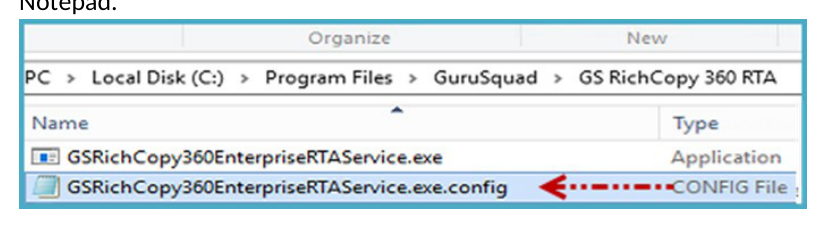
Go to C:\Program Files\GuruSquad\GS RichCopy 360 RTA.
-
Open the GSRichCopy360EnterpriseRTAService.exe.config file with Notepad.
 3. Add the IP addresses in the key named AllowedIpAddress as shown in the following image.
Note: IP addresses must be separated by commas. Do not leave this section blank as it would then be setup to accept commands from any IP address.
-
Save the GSRichCopy360EnterpriseRTAService.exe.config file.
-
Restart the GS RichCopy 360 Enterprise RTA Service.
- Only users with admin privileges can use the GS RichCopy 360 command line by default. If there are users that need to use the GS RichCopy 360 CLI without administrative privileges, the config file must be edited to remove the administrative privileges restriction.
-
Go to C:\Program Files\GuruSquad\GS RichCopy 360 RTA.
-
Open the GSRichCopy360EnterpriseRTAService.exe.config file with Notepad.
-
Set the value of the key IsOnlyAdminAllowedfromCLI to false as shown in the following image.
-
Save the GSRichCopy360EnterpriseRTAService.exe.config file.
-
Restart the GS RichCopy 360 Enterprise RTA Service.